
Last updated: October 2026. Prices as of October 2026; prices and ratings may have changed since.
Right now I’m looking at three monitors. Two 27-inch ViewSonics mounted on arms for work, and a 32-inch MSI OLED sitting between them for when the kids go to bed and it’s time to actually enjoy the desk I built. It took me a while to get here, but the difference between a single monitor and a dual monitor setup home office is one of those upgrades you can’t believe you waited so long to make.
If you work from home — and if you’re reading this, you probably do — you already know the pain. You’re on a Zoom call and you need to pull up a document, so you minimize the call. Now you can’t see the person talking. You drag the window to the side and everything’s overlapping. You spend half your day resizing windows instead of actually working.
A dual monitor setup for your home office fixes that overnight. One screen for the thing you’re focused on, one screen for everything else — email, Slack, reference docs, the security camera feed of your toddler doing something suspicious in the living room. Once you go dual, you don’t go back.
But here’s what nobody tells you: the monitors are only half the equation. You also need a way to mount them so your desk isn’t eaten alive by two giant stands, cables that actually reach without a rats nest behind your desk, and the right accessories to keep the whole setup looking clean. I’ve been through the trial and error so you don’t have to.
Here’s everything you need to build a dual monitor setup for your home office in 2026 — what to buy, what to skip, and how to put it all together.
What Your Dual Monitor Setup Home Office Actually Needs
Before you start adding monitors to your cart, here’s the full list of what goes into a dual monitor setup that actually looks and works like you planned it in your head. Most guides only talk about the monitors. That’s like telling someone to buy tires without mentioning the car.
Two matching monitors. They don’t have to be the exact same model, but matching size and resolution makes a huge difference. When one screen is brighter, sharper, or a slightly different color temperature than the other, your eyes notice — and it’s annoying every single day. Buy two of the same monitor and save yourself the headache. And for positioning them, OSHA’s monitor guidelines are the nerdy-but-useful reference for height and viewing distance.
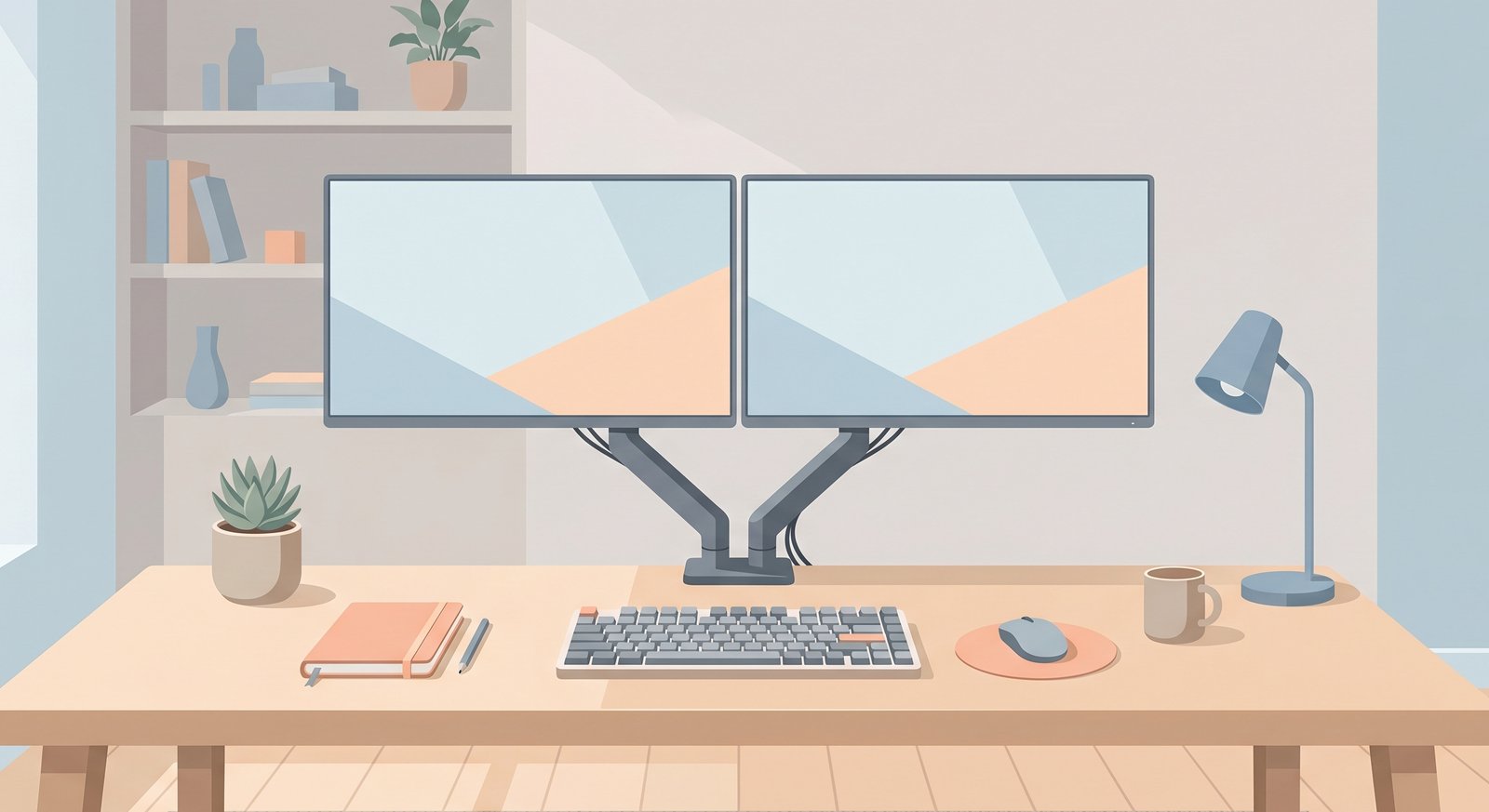
A dual monitor arm. This is the upgrade most people skip, and it’s the one that makes the biggest difference to how your desk looks and feels. Stock monitor stands eat up a massive amount of desk space and don’t let you adjust height or angle. A good dual arm clamps to the back of your desk, holds both monitors at eye level, and gives you back about two feet of desk surface. If you’re going to run a dual monitor setup for your home office, mount them properly.
The right cables. HDMI, DisplayPort, or USB-C — it depends on your monitors and your computer’s outputs. Most monitors come with one cable in the box. You’re buying two monitors, and your computer might not have two of the same output. Check your ports before you order so you’re not making a second trip.
Cable management. Two monitors means double the cables — two power cords, two video cables, and whatever else you’re running. If you don’t manage this from the start, the back of your desk will look like a server room. I wrote a whole article on the best cable management for your home office desk — it applies here too.
A monitor light bar (optional but recommended). Once you’ve got two screens in front of you, overhead lighting creates glare on at least one of them. A light bar mounts on top of your monitor and lights your desk without reflecting off the screen. I covered this in my monitor light bar article — it’s a $40-70 add-on that makes a real difference during long work sessions.
Best Monitors for a Dual Home Office Setup
Here’s my rule for picking monitors for a dual setup: 27 inches, IPS panel, thin bezels, and VESA mount compatible. That last one is non-negotiable — without VESA compatibility, you can’t use a monitor arm, and you’ll be stuck with those bulky stock stands forever.
I run 27-inch ViewSonics and they’re the sweet spot. 24 inches feels small once you’re used to it, and 32 inches is too big for most desks when you’re running two side by side. At 27 inches, you get plenty of screen space without your desk looking like mission control.
Best Overall: Dell S2725HS (27”, 1080p IPS)
Price: ~$190 at Dell | Resolution: 1920×1080 | Panel: IPS | Refresh: 100Hz
View at Dell (Dell showed it as temporarily out of stock in October 2026, so check other retailers too.)
Dell makes the most reliable monitors in this price range, and the S2725HS is their best work-from-home offering right now. You get a 27-inch IPS display with 100Hz refresh rate, built-in dual 5W speakers (surprisingly decent for video calls), and a fully adjustable stand with height, tilt, swivel, and pivot. That adjustable stand matters if you’re using it before your monitor arm arrives.
The bezels are thin enough that two of these side by side create a near-seamless view. Color accuracy is solid at 99% sRGB, which is more than enough for office work, photo editing, and streaming. The ComfortView Plus blue light reduction actually works without making everything look yellow.
The only downside: no USB-C connectivity. It has two HDMI ports and no DisplayPort, which is fine for most desktop setups but means laptop users won’t get single-cable convenience.
Buy two for: ~$380 total. That’s a complete dual monitor setup for the price of one premium monitor.
Best for Dual Setup Out of the Box: ViewSonic VA2756-MHD (27”, 1080p IPS) — 2-Pack
Price: ~$390 for the 2-pack | Resolution: 1920×1080 | Panel: IPS | Refresh: 100Hz
ViewSonic sells the VA2756-MHD as a matched 2-pack on Amazon, which eliminates the biggest headache of building a dual setup: making sure both monitors look the same. Same panel, same brightness, same color temperature out of the box. No calibration needed.
These are the monitors I personally run. The SuperClear IPS panel delivers consistent colors from every angle, which matters when you’re turning your head between two screens all day. The 3-sided frameless design keeps the gap between monitors minimal. HDMI, DisplayPort, and VGA inputs mean you can connect to basically anything, and the built-in speakers handle Zoom calls in a pinch.
The catch: the stock stand is tilt-only. No height adjustment. That means you’ll either want a monitor arm (which you should get anyway) or a stack of books under your monitors like it’s 2005.
Why the 2-pack matters: Guaranteed matching panels, usually a few bucks cheaper than buying two individually, and one order instead of two.
Best Premium Pick: ViewSonic VA2756-4K-MHD (27”, 4K IPS)
Price: ~$230 each | Resolution: 3840×2160 | Panel: IPS | Refresh: 60Hz
If you stare at text all day — code, spreadsheets, documents — the jump from 1080p to 4K on a 27-inch screen is genuinely noticeable. Text is razor sharp, everything looks cleaner, and you can fit significantly more windows on screen without everything feeling cramped. It’s one of those upgrades where you don’t realize how much it matters until you go back to 1080p and wonder why everything looks fuzzy.
The 4K resolution on a 27-inch panel gives you 163 pixels per inch, which is in the same ballpark as a MacBook Retina display. Thin bezels, VESA compatible, flicker-free with blue light filter. HDMI and DisplayPort connectivity.
The trade-off is the 60Hz refresh rate (vs. 100Hz on the 1080p picks). For office work that’s perfectly fine — you’re not gaming on these. The bigger trade-off is the price: two of these runs about $460 total, roughly $80 more than a pair of the budget picks. Worth it if text clarity is your priority. Overkill if you’re mostly browsing and doing video calls.
Buy two for: ~$460 total. A premium dual 4K setup for the price of a single high-end ultrawide.
Best Dual Monitor Arm for Your Home Office
A dual monitor arm is the single biggest quality-of-life upgrade in this entire article. It clears your desk, puts both screens at eye level, and lets you adjust height, angle, and distance without playing Jenga with books and boxes. Once you mount your monitors on arms, the stock stands go in a closet and never come back.
Both of these picks use a C-clamp that attaches to the back of your desk — no drilling required. They all support VESA 75×75 and 100×100 mounting patterns, which covers virtually every monitor on the market.
Best Value: VIVO STAND-V002 Dual Monitor Desk Mount
Price: ~$35 | Fits: 13”-30” screens up to 22 lbs each | Rating: 4.5★ (50,000+ reviews)
The VIVO V002 is the most popular dual monitor arm on Amazon for a reason: it works, it’s cheap, and it’s been proven by over 50,000 reviews. Height adjusts along the center pole, each arm offers full tilt, swivel, and rotation, and the C-clamp fits desks up to 3.25 inches thick.
It’s not a gas spring arm — you adjust height by loosening and re-tightening a clamp on the pole. That means height changes are a two-handed, intentional process rather than a smooth one-finger glide. For most people who set their monitors once and leave them, that’s perfectly fine. If you’re constantly adjusting throughout the day, spend more on a gas spring model.
Why I’d pick this one: At about $35, it costs less than a nice lunch for two. There’s no reason to leave your monitors on stock stands when this exists.
Best Upgrade: VIVO STAND-V002O Mechanical Spring Dual Mount
Price: ~$50 | Fits: 17”-32” screens up to 19.8 lbs each | Rating: 4.5★
Same brand, significant upgrade. The V002O uses counterbalance mechanical spring arms instead of a fixed pole, which means you can adjust the height of each monitor independently with a light push. The arms feel smooth and hold position without drifting. It supports monitors up to 32 inches, so if you decide to upgrade your screens later, the arm can handle it.
Cable management clips are built into the arms, and the whole thing looks significantly more polished than the budget pole-style mount. If you’re investing in a nice dual monitor setup, spending the extra $15 on the arm you’ll use for years is worth it.
Why I’d pick this one: The sweet spot between price and functionality. Independent arm adjustment and a cleaner look for about $50.
Cables and Adapters You’ll Actually Need
Two monitors means at minimum four cables: two power cords (usually included with the monitors) and two video cables. Here’s where people get tripped up.
Step 1: Check your computer’s outputs. Look at the back of your desktop (or the side of your laptop) and count the video ports. Most modern desktops have at least one HDMI and one DisplayPort. Laptops usually have one HDMI and possibly one USB-C that supports video. You need one output per monitor.
Step 2: Check your monitor’s inputs. The ViewSonic monitors recommended above have both HDMI and DisplayPort inputs, but the Dell S2725HS is HDMI-only (two HDMI ports, no DisplayPort). Match your computer’s outputs to your monitor’s inputs, and buy the corresponding cables.
Step 3: Don’t overthink it. For a home office running 1080p at 100Hz or 4K at 60Hz, any standard HDMI 2.0 or DisplayPort 1.4 cable will work. You don’t need $40 gold-plated cables. A $7 Amazon Basics cable does the same job.
If your computer only has one HDMI port: Use HDMI for one monitor and DisplayPort for the other — or, if both monitors are HDMI-only like the Dell, use a DisplayPort-to-HDMI cable or adapter for the second one. If your laptop only has USB-C, grab a USB-C to HDMI or USB-C to DisplayPort adapter — they’re about $12-15.
Most monitors ship with one HDMI cable in the box. If both of your computer’s outputs are HDMI, you might only need one extra cable. Check before you order.
Keep Your Dual Monitor Setup Clean
This is where having a site about home office gear pays off — I’ve already done the deep dive on both of these topics.
Cable management: Two monitors means double the cable mess. Under-desk trays, cable sleeves, and velcro ties will keep everything from turning into spaghetti. I’ve got a full breakdown of the best products for this in my cable management article.
Monitor lighting: Overhead lights create glare on wide screens, and two monitors doubles the surface area for reflections. A monitor light bar sits on top of your screen and lights your desk downward — no glare, no reflections, and your eyes thank you after a long day. I reviewed the best options in my light bar article.
How to Set Up Dual Monitors (Step by Step)
Once everything arrives, here’s the order I’d do it in. This sequence avoids the most common mistakes and saves you from having to redo anything.
1. Install the monitor arm first. Clamp it to the back of your desk before the monitors are anywhere near it. Tighten the C-clamp, make sure it’s stable, and adjust the arm height to roughly where you want it. It’s much easier to do this without 20+ pounds of monitors attached.
2. Attach the VESA brackets to your monitors. Remove the stock stands from your monitors and screw the VESA mounting plates onto the back. Every monitor and arm on this list includes the necessary screws. This is easier to do with the monitors face-down on a soft surface.
3. Mount the monitors on the arms. Lift each monitor and slide or click it onto the arm. Have someone help with this step if you can — 27-inch monitors are awkward to hold with one hand while aligning a bracket with the other.
4. Connect your cables. Run the video cables from each monitor to your computer. Route them through the cable clips on the monitor arm. Connect the power cables. Don’t worry about making it pretty yet — just get everything connected and working.
5. Configure your displays. On Windows, right-click your desktop and select Display Settings. You’ll see both monitors represented as rectangles. Drag them to match their physical position on your desk (left/right). Set your main display. Make sure both are running at their native resolution and highest refresh rate.
6. Adjust the physical position. The top of both screens should be at or slightly below eye level. The monitors should be at arm’s length. Angle each screen slightly inward so they form a gentle curve facing you. Spend five minutes getting this right — your neck will thank you for the next five years. Your forearms are a separate negotiation — if they start sticking to the desk by mid-afternoon, here’s how to fix arms sticking to the desk.
7. Manage the cables last. Now that everything is in its final position, bundle the cables with velcro ties, route them through sleeves or along the monitor arm, and tuck the excess behind your desk. This is the last step because cable management is pointless if you’re still moving things around.
FAQ
Do I need a special graphics card for dual monitors?
Probably not. Most modern desktops and laptops can run two external monitors natively. If your computer has two video outputs (HDMI, DisplayPort, USB-C), you’re good. The only time you’d need a dedicated graphics card is if you’re running 4K on both screens and your computer is more than a few years old.
Should I get two matching monitors or is mixing okay?
Matching is strongly recommended. Mismatched monitors mean different brightness levels, different color temperatures, and different bezels — all of which are distracting when you’re looking at them eight hours a day. If you already have one monitor and want to add a second, try to find the same model. If it’s discontinued, match the size and resolution as closely as possible.
Is 1080p enough for 27-inch monitors?
For most home office work, yes. Text is readable, images look fine, and video calls are smooth. If you do a lot of reading, coding, or design work, 1440p or 4K will look noticeably sharper at 27 inches. But for email, spreadsheets, and general productivity, 1080p at 27 inches is perfectly fine and saves you real money.
Can I use my laptop as one of the screens?
You can, but I wouldn’t recommend it as a permanent setup. Your laptop screen is smaller, lower, and a different resolution than your external monitor. You’ll constantly be craning your neck down to look at it. A better approach: close the laptop, use it as the brain, and run two external monitors as your displays. If you need the laptop screen open for the webcam, put it on a laptop stand to the side.
How much desk space do I need?
Two 27-inch monitors side by side span about 48 inches. Add a few inches on each side for the monitor arm reach, and you’re looking at a minimum desk width of 55-60 inches. Depth should be at least 24 inches so the screens aren’t right in your face. If your desk is smaller than that, consider 24-inch monitors instead.
A dual monitor setup is one of those home office upgrades that sounds like a luxury until you try it. Then it feels like a necessity. Two screens, a solid arm, and a little bit of cable management is all it takes to transform a cramped, window-juggling workspace into something that actually works the way your brain does.
You don’t need to spend a fortune. Two Dell S2725HS monitors and a VIVO arm will run you about $415 total, and that’s a setup that’ll serve you for years. If you want the easiest path, grab the ViewSonic 2-pack and the same VIVO arm for about $425.
Either way, your single-monitor days are numbered. Trust the dad who’s sitting in front of three screens right now — more monitors, more productivity, fewer headaches. Set it up during nap time.